Content
Important!!!
Due to screen size constrain, some of the features described in this document are not supported on mobile devices. To get a complete experience of the product try accessing it using a regular laptop/desktop.
I. What You See When You Sign In
II. Customizing Your BookShelf
III. Using The Theory Booklet
IV. Creating & Managing Your Personal Notes
VI. Organising Live Group Activities
-
What Is A Group Activity
- A live group activity is where each of the participants sign in at the same time and compete in the same activity. During the activity each student can see the progress made by all other participants. At the end of the group activity, each participant can view how the others performed in terms of time and accuracy.
- Every student can form atmost 3 groups. Each group can contain a maximum of 12 members.
- To be able to form or join a group, a verified student email address is required. All group activity related communications are sent to this email address.
- Once your email validation process is complete, you can create a new group using the
 button, which appears on your dashboard.
- Summaries of all the groups you have created or joined appear in the Group Activities section like:
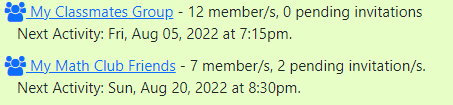
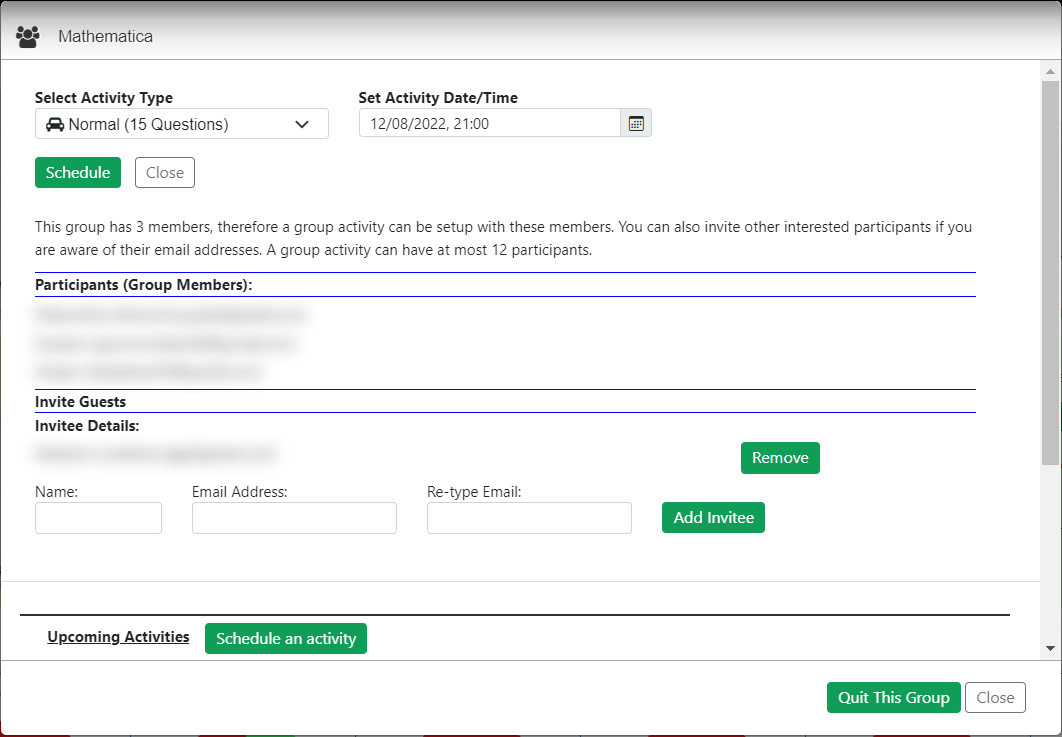
Clicking the name of any group will open the Group Manage section, where you can invite friends or schedule group activities.
-
Setting Up A Group Activity
- Click the
 button to show the activity setup menu.
- Use the
 dropdown to select the number of questions for the group activity.
- Use the
 calendar control to select the date and time of the the activity.
- All members of the group are automatically sent the invitation for the activity.
- Additionally, you can invite guest participants for an individual activity by entering the email addresses and names of the participants. A group activity can have atmost 12 participants including regular group members and invited guests.
- Once you have completed selecting your guest invitees, and setting up the date/time for the group activity click the
 button to complete setting up the group activity.
-
Participating In A Group Activity
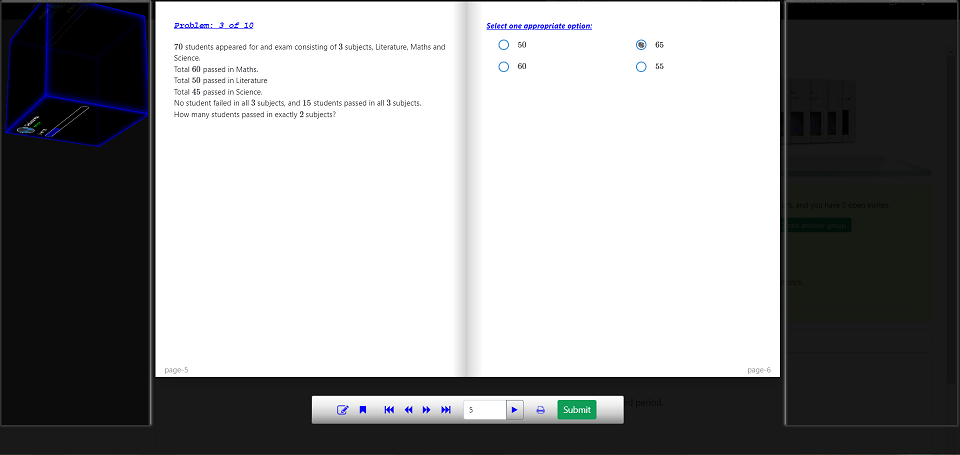
- To participate in a group activity, sign-in to your account at least 5 mins before the scheduled exam time.
- Guest participants can join the activity by using the OTP sent to their email address.
- Once you have signed in to your group activity, your activity starts automatically at the scheduled time.
- During the activity you will be able to see the progress made by other participants. You will be shown how many questions they have attempted so far, but you will not be able to see whether these are correct or incorrect attempts.
- Once you have submitted your own paper you will be shown a graph containing your result. You will also be able to view the performance of all those who have submitted their papers.
- As other participants keep submitting their papers the performance graph will be updated with their submissions.
- Once you have submitted your group activity paper, you are shown a chat window, which you can use to discuss various problems/solutions with the other participants of the activity.
- To leave the group activity click the
 button.
-
Interpreting Group Activity Result
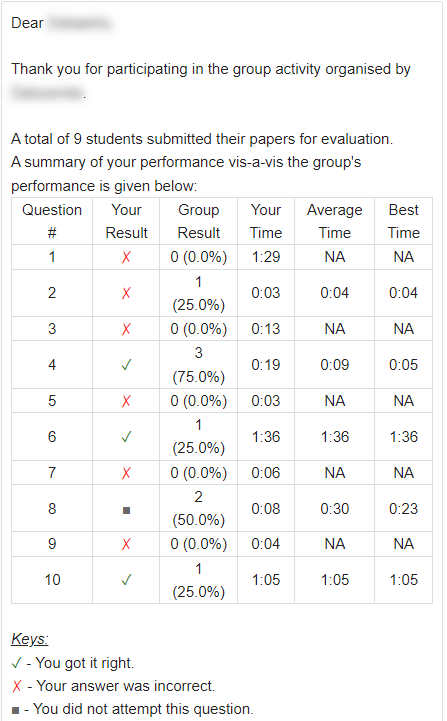
- After all participants have submitted their group activity papers, each will receive a detailed comparitive analysis of the group activity performance.
-
For each question, you will be able to see the following data:
- How many of your friends got the problem correct
- How much time you took for the problem.
- What was the minimum time amongst all correct attempts of the problem in the group.
- What was the average time for all correct attempts of that problem.
VI. Interpreting & Improving Your Performance
-
Viewing Your Performance
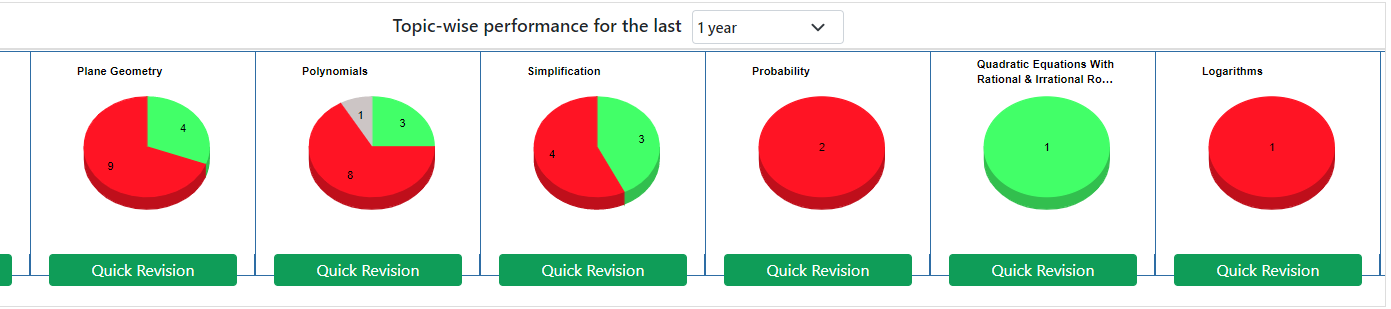
- You can track your performance for a selected time period of your choice. This performance is shown to you in the form of a pie-chart. You can view these charts on a per-topic basis, which allows you to focus on topics that you are less strong than you would like to be.
- Use Select-Period dropdown to select a suitable period of time for which you want to view your performance.
- Each pie-chart shows your performance in a particular topic. The green slice shows the number and percentage of correct attempts, the red slice shows the number of incorrect attempts and the gray slice shows the number of problems you did not attempt.
- Clicking any of these slices shows the details of your attempts for each of these topics.
- Clicking the Quick Revision button will allow you to attempt a set of questions for the particular topic.
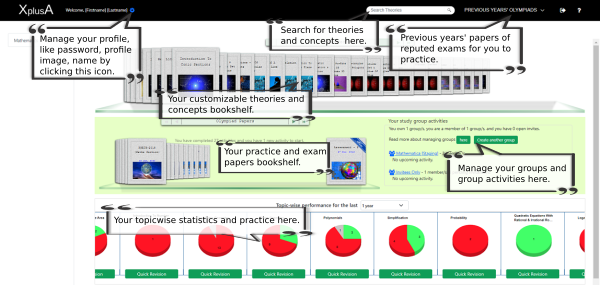
 icon, next to your name, to manage your profile settings. You can update your name, password and profile picture here.
 search bar to search for theories that you want to add to your bookshelf. Refer to this section to know more about customizing your bookshelf.
 section to practice previous years' question papers of well known Olympiads and other exams like JEE.
 icon to sign out from your account. As a good security practice, do not close the browser or leave the computer without signing out from your account.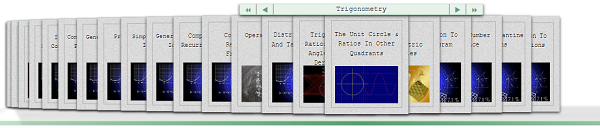
 shows the current category.
 ,
,  ,
,  ,
,  buttons on the bookshelf display to navigate through the shelf content.
 will appear on the cover page of the book. Use this button to add the theory to your bookshelf.
 on the cover page instead. Use this button to remove the theories you have completed.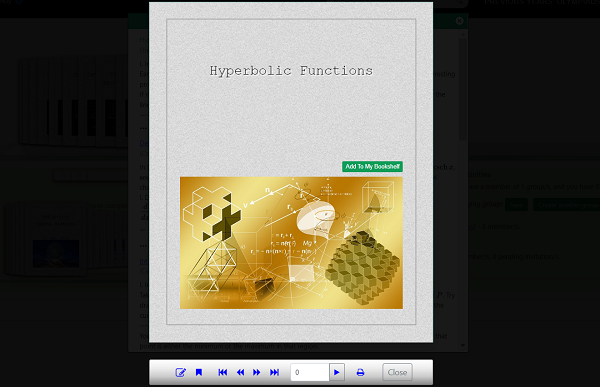
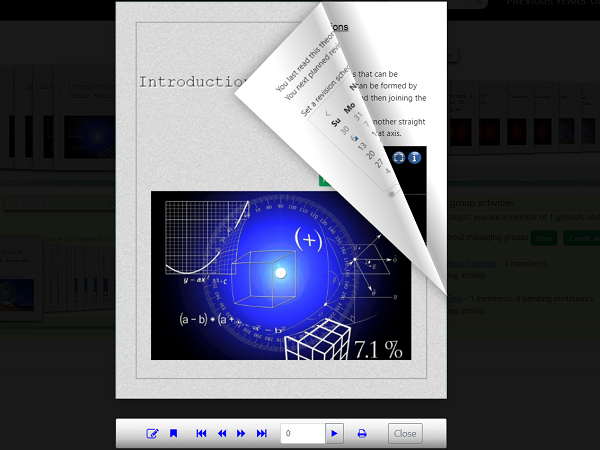
 button in the toolbar below the booklet.
 icon on the top.
 icon to maximize the widget to full screen mode, and the
  icon to know more about how to use the widget.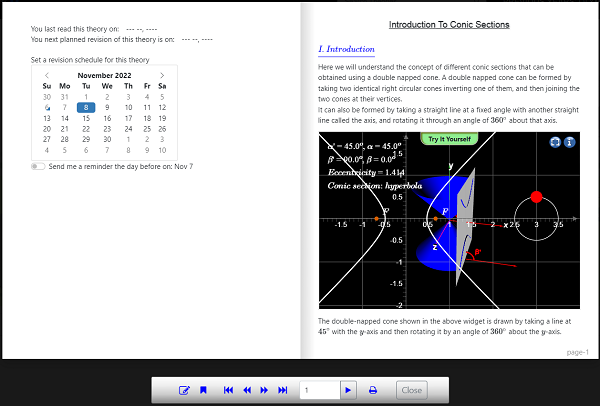
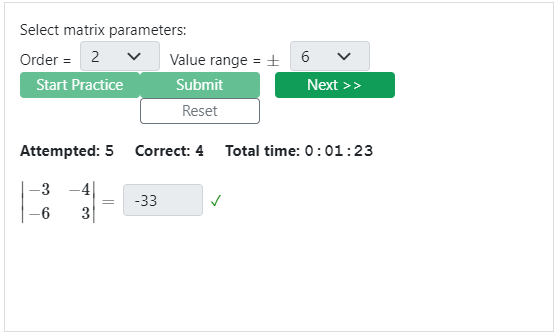
 the knob and then clicking the
  button.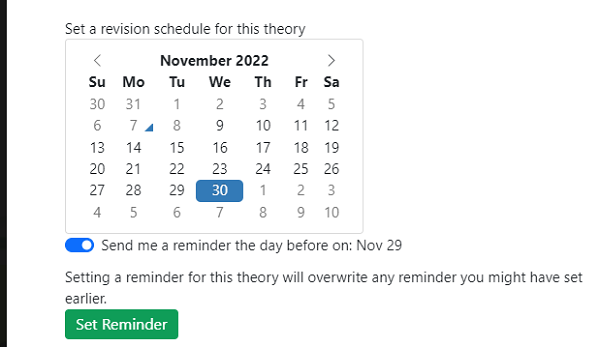
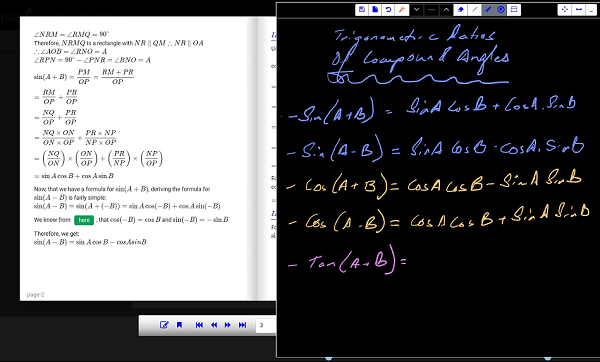
 button in the booklet toolbar to activate the built-in smartboard.
 button on the whiteboard toolbar to save these notes.
 button on the whiteboard toolbar to access these notes.